
- Add New Form
- Form Settings in SureDonation
- Set a Default Donation Form in SureDonation
- Text Field in SureDonation
- Email Field in SureDonation
- Number Field in SureDonation
- Donation Amount Field in SureDonation
- Payment Field in SureDonation
- Donate Button in SureDonation
- Cover Processing Fees Field
- Handle Custom Stripe Webhook Events
- suredonation_export_secret_option_keys Filter Hook
- suredonation_import_batch_complete Action Hook
- suredonation_import_complete Action Hook
- suredonation_import_donation_inserted Action Hook
- suredonation_import_donor_inserted Action Hook
- suredonation_import_session_created Action Hook
- suredonation_import_givewp_batch_complete Action Hook
- suredonation_import_givewp_session_created Action Hook
- suredonation_privacy_data_exported Action Hook
- Validate Field Filter Hook
- Validatable Blocks Filter Hook
- Update donation data, Filter Hook
- OttoKit Integration: suredonation_suretriggers_integration_data_filter Filter Hook
- suredonation_show_setup_gateway_notice Filter Hook
- suredonation_show_review_notice_gateway Filter Hook
- suredonation_show_review_notice_donation Filter Hook
- suredonation_registered_payment_methods Filter Hook
- suredonation_register_additional_blocks Filter Hook
- suredonation_receipt_html Filter Hook
- Validatable Blocks Filter Hook
- Update donation data, Filter Hook
- OttoKit Integration: suredonation_suretriggers_integration_data_filter Filter Hook
- suredonation_show_setup_gateway_notice Filter Hook
- suredonation_show_review_notice_gateway Filter Hook
- suredonation_show_review_notice_donation Filter Hook
- suredonation_registered_payment_methods Filter Hook
- suredonation_register_additional_blocks Filter Hook
- suredonation_receipt_html Filter Hook
- suredonation_phone_geo_enabled Filter Hook
Gift Aid in SureDonation
The Gift Aid feature in SureDonation allows UK charities to collect Gift Aid declarations from donors and claim an additional 25% on eligible donations from HM Revenue & Customs (HMRC).
For every £1 donated, an eligible charity can claim an extra 25p from HMRC at no additional cost to the donor.
With Gift Aid, you can:
- Collect Gift Aid declarations directly through donation forms.
- Allow eligible UK taxpayers to opt in to Gift Aid.
- Collect donor information required for Gift Aid claims.
- View and download Gift Aid declarations.
- Export Gift Aid donation records for HMRC claims.
This feature is useful for UK charities that want to increase their fundraising income while keeping donor declarations organized.
Before You Begin
Before adding Gift Aid to your donation form, make sure you have:
- SureDonation and SureDonation Pro installed and activated.
- A donation campaign and form created in SureDonation.
- Your donation currency set to GBP (British Pound).
- A charity eligible to claim Gift Aid from HMRC.
Gift Aid is available only when the donation currency is set to GBP.
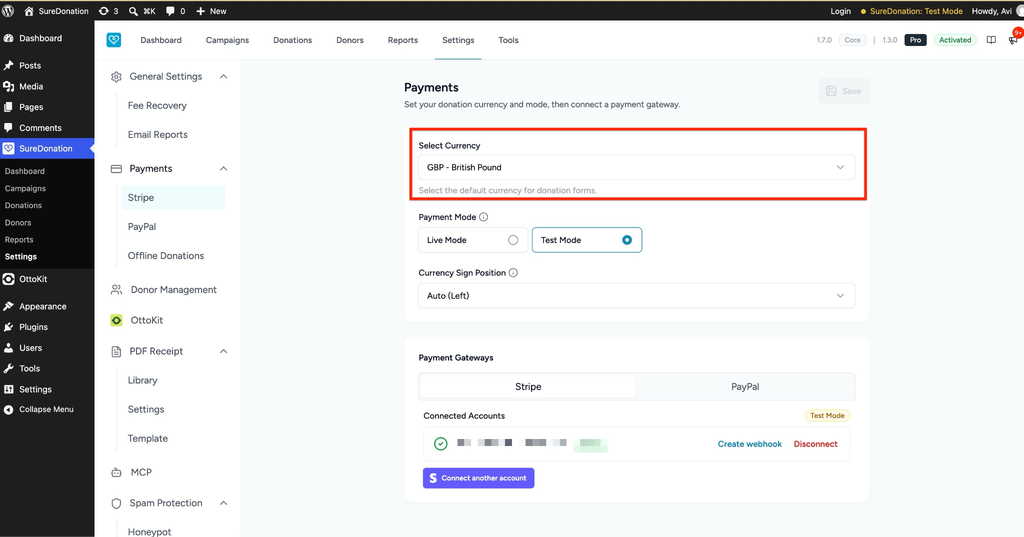
Step 1: Set Your Donation Currency to GBP
To use the Gift Aid field, you must first configure GBP as your donation currency.
- Log in to your WordPress Dashboard.
- Navigate to SureDonation → Settings.
- Open the Payments section.
- Under Select Currency, choose GBP – British Pound.
- Click Save to apply the changes.
Step 2: Open Your Donation Form
Once GBP is configured, you can add the Gift Aid field to your donation form.
- Navigate to SureDonation → Campaigns.
- Open the campaign where you want to collect Gift Aid declarations.
- Locate the donation form associated with the campaign.
- Click Edit to open the donation form editor.
Step 3: Add the Gift Aid Field
SureDonation Pro provides a dedicated Gift Aid block that you can add directly to your donation form.
To add the field:
- In the donation form editor, click the Add Block (+) button.
- Locate the Gift Aid block under General Fields.
- Click the Gift Aid block to insert it into your form.
- Select the inserted block to open its settings in the right sidebar.
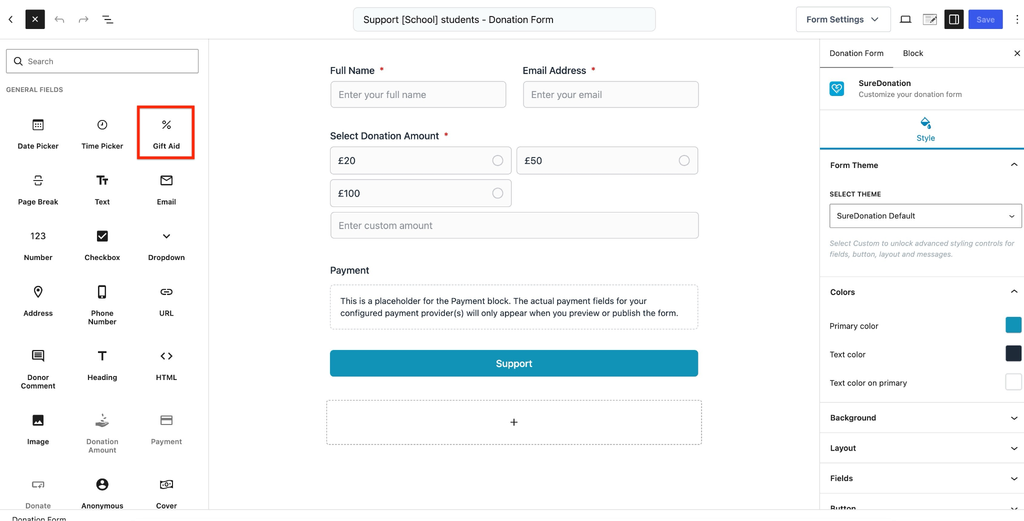
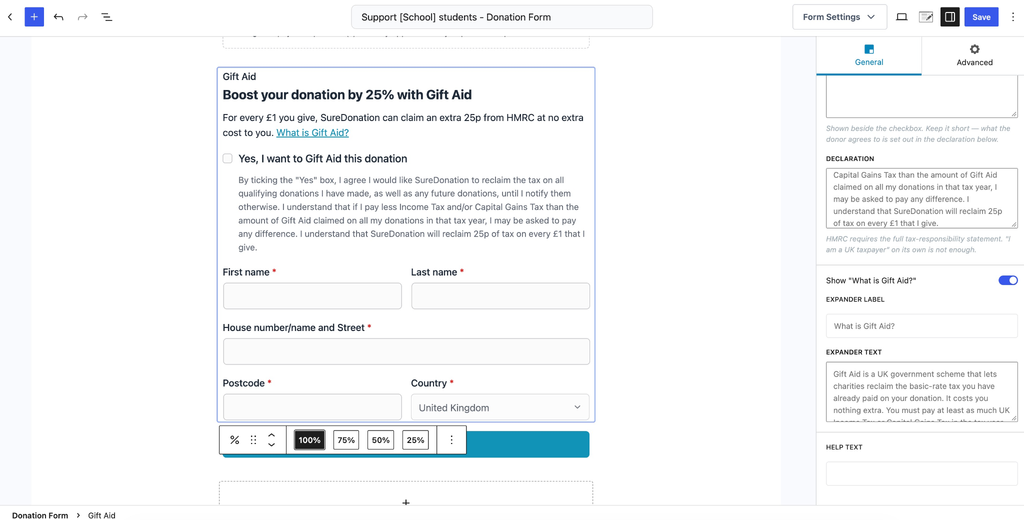
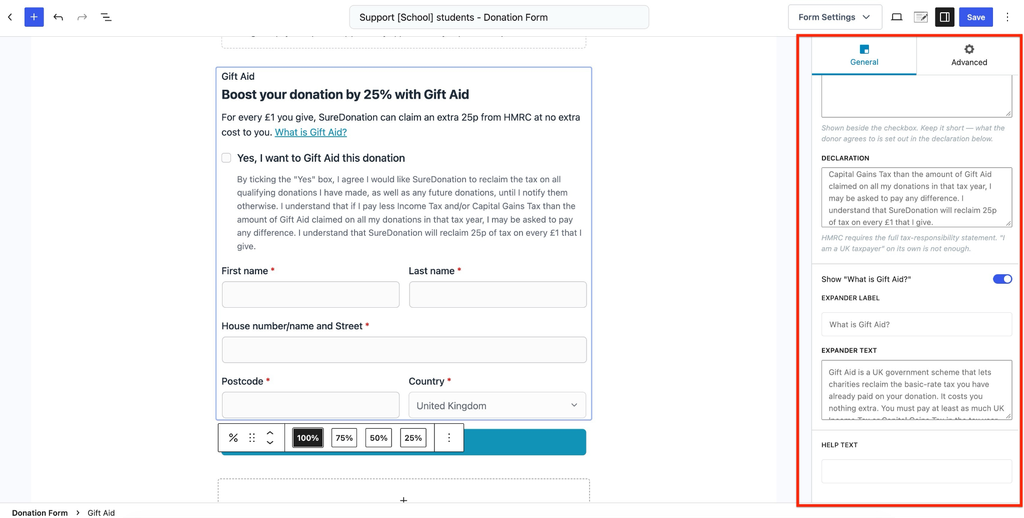
Once added, the Gift Aid section appears in your donation form with a heading, explanation, opt-in checkbox, declaration, and donor information fields.
Step 4: Configure Gift Aid General Settings
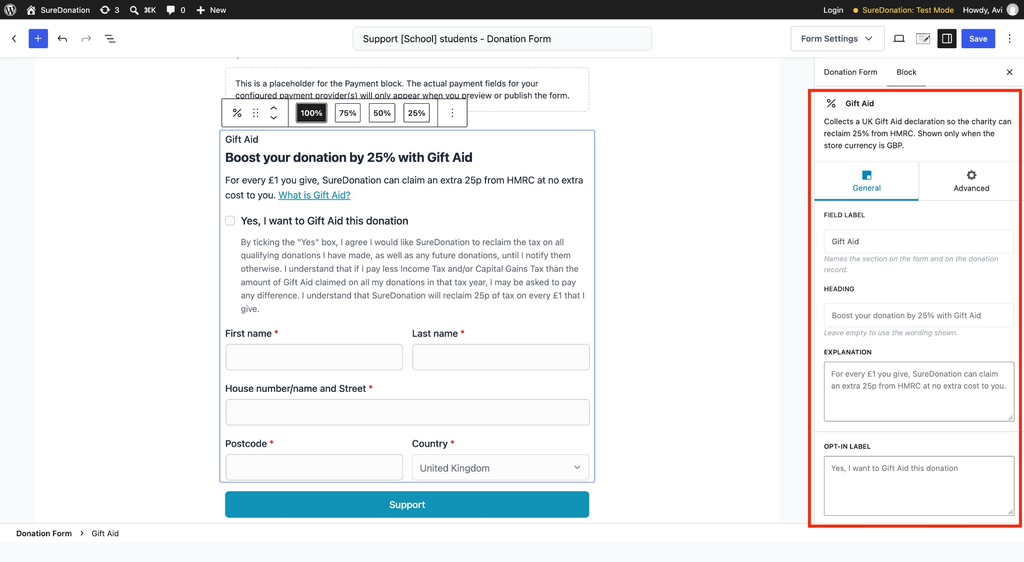
After adding the Gift Aid block, select it and open the General tab in the Block settings panel.
Here, you can customize the information displayed to donors.
Field Label
The Field Label identifies the Gift Aid section in your donation form and donation records.
The default label is:
Gift Aid
You can change this label to match your organization’s requirements.
Heading
The Heading appears at the top of the Gift Aid section.
The default heading is:
Boost your donation by 25% with Gift Aid
This helps donors understand the benefit of enabling Gift Aid.
Explanation
The Explanation field allows you to display a short description of how Gift Aid works.
The default explanation tells donors that your charity can claim an additional 25p for every £1 donated without any extra cost to them.
You can customize this message to provide more information about Gift Aid.
Opt-in Label
The Opt-in Label is displayed next to the checkbox donors use to enable Gift Aid.
The default label is:
Yes, I want to Gift Aid this donation
Donors must select this checkbox to provide their Gift Aid declaration.
Declaration
The Declaration field contains the tax-responsibility statement that donors agree to when opting in.
The declaration explains that:
- The donor wants the charity to claim Gift Aid on eligible donations.
- The declaration may cover qualifying past and future donations until the donor notifies the charity otherwise.
- The donor is responsible for paying enough UK Income Tax or Capital Gains Tax to cover the Gift Aid claimed.
- The donor may need to pay the difference if insufficient qualifying tax has been paid.
You can customize the declaration text according to your charity’s requirements.
Step 5: Configure the Gift Aid Information Section
SureDonation also provides an optional information section to help donors understand Gift Aid before opting in.
Show “What is Gift Aid?”
Enable this option to display a What is Gift Aid? link in the donation form.
This option is enabled by default.
When donors click the link, an expandable section explains how Gift Aid works.
Expander Label
The Expander Label controls the text displayed on the information link.
The default text is:
What is Gift Aid?
You can customize it if needed.
Expander Text
The Expander Text contains the information displayed when donors open the Gift Aid explanation.
You can use this field to explain:
- What Gift Aid is.
- How charities benefit from Gift Aid.
- Who can make a Gift Aid declaration.
- The donor’s UK tax responsibilities.
Help Text
The Help Text field allows you to add additional guidance for donors.
For example, you can explain who is eligible to make a Gift Aid declaration or provide instructions for completing the section.
Step 6: Collect Donor Information for Gift Aid
When donors select the Gift Aid checkbox, SureDonation collects the information required for the declaration.
The Gift Aid section includes the following fields:
| Field | Description |
| First Name | Donor’s first name. |
| Last Name | Donor’s last name. |
| House Number/Name and Street | Donor’s home address. |
| Postcode | Donor’s postal code. |
| Country | Donor’s country, set to United Kingdom. |
All these fields are required when a donor opts in to Gift Aid.
These details help your charity maintain the records needed to support Gift Aid claims.
Step 7: Save and Publish Your Donation Form
After configuring the Gift Aid settings, save your changes.
- Review the Gift Aid field settings.
- Click Save, Publish, or Update, depending on the form’s status.
- Open the donation form on your website.
- Verify that the Gift Aid section appears correctly.
Step 8: Test the Gift Aid Field
Before collecting real donations, test the Gift Aid field to confirm that it works correctly.
- Open your published donation form.
- Enter the donor’s name and email address.
- Select a donation amount.
- Locate the Gift Aid section.
- Select Yes, I want to Gift Aid this donation.
- Enter the required donor information.
- Complete a test donation.
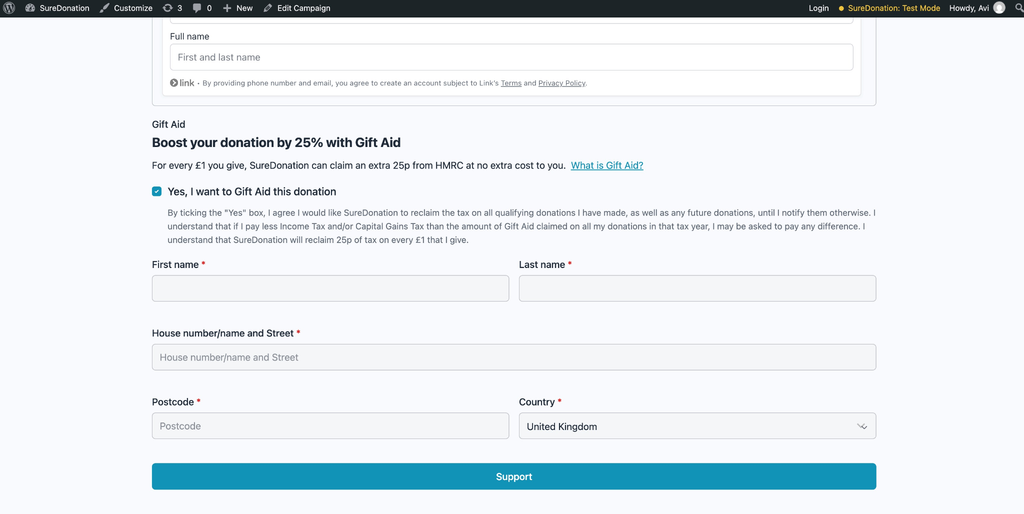
After completing the test donation, check that the Gift Aid declaration and donor details have been saved correctly.
Step 9: View Gift Aid Declarations
SureDonation allows you to view Gift Aid declarations from donation and donor records.
View a Declaration from Donations
- Navigate to SureDonation → Donations.
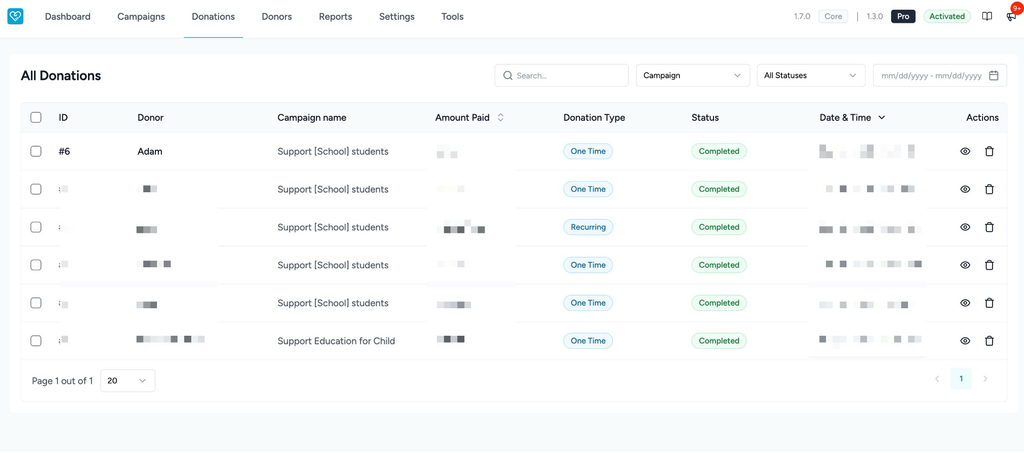
- Open a donation that includes a Gift Aid declaration.
- Locate the Gift Aid section.
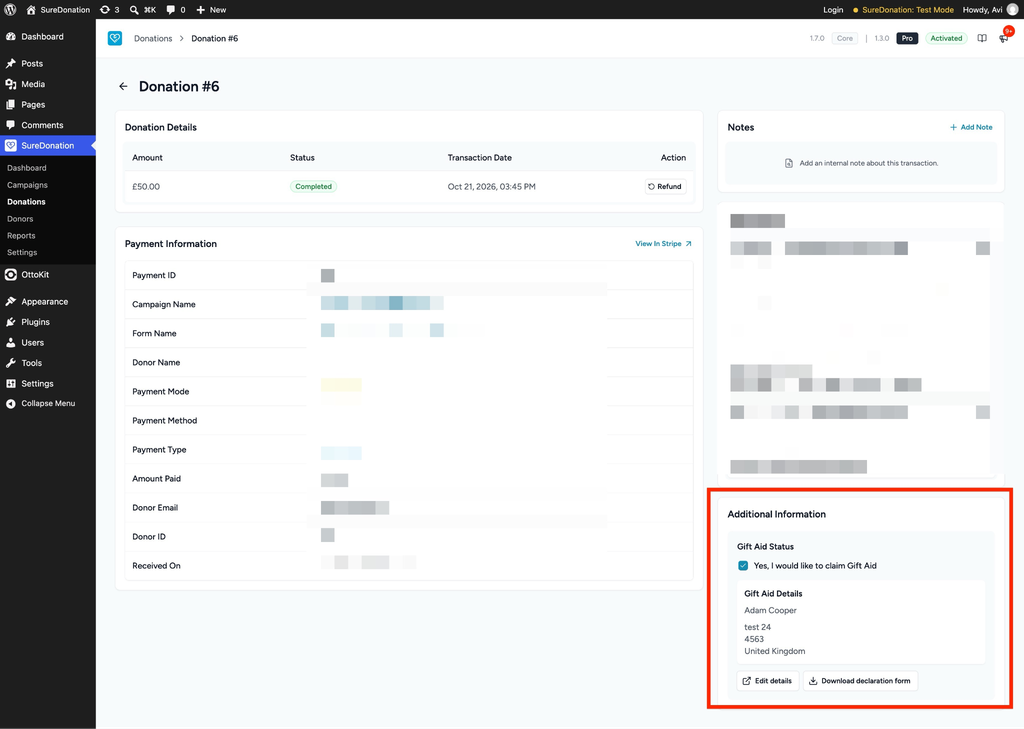
- Review the donor’s opt-in status, name, and address.
You can also download the donor’s Gift Aid declaration as a PDF.
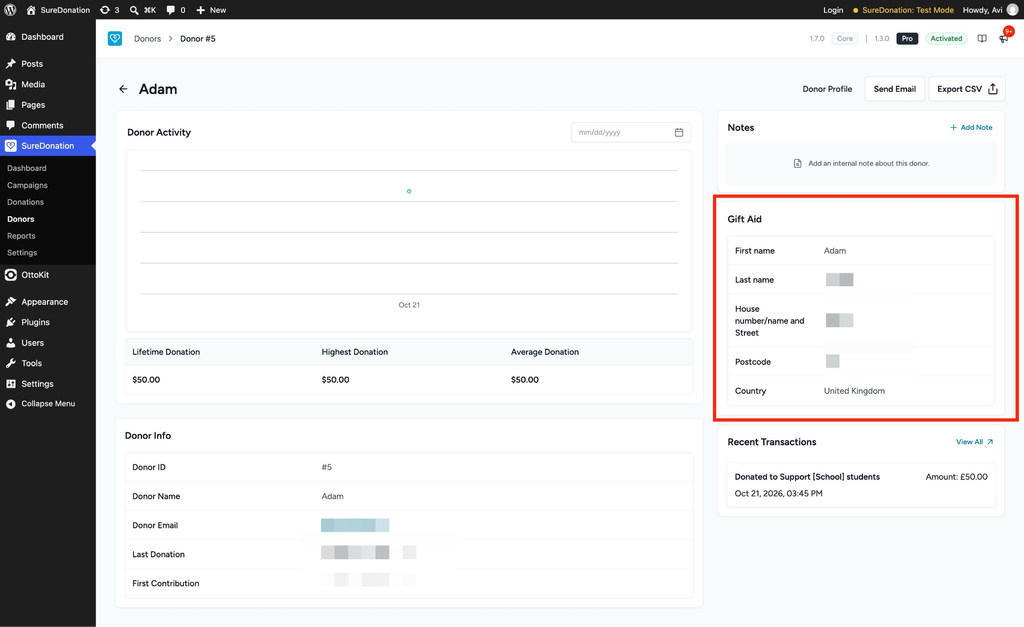
View Gift Aid Information from Donors
You can also review Gift Aid details from the donor’s profile.
- Navigate to SureDonation → Donors.
- Open the donor’s profile.
- Locate the Gift Aid card.
- Review the donor’s declared name and address information.
The Gift Aid card displays the stored details in read-only format.
To update donor profile information, use the Edit Donor Profile option.
Step 10: Export Gift Aid Claims
SureDonation Pro allows you to export Gift Aid donation records for preparing claims to HMRC.
To export Gift Aid records:
- Navigate to SureDonation → Tools.
- Open Import & Export.
- Select the Export tab.
- Locate the Gift Aid Claim section.
- Select the required date range using the From and To fields.
- Click Export CSV.
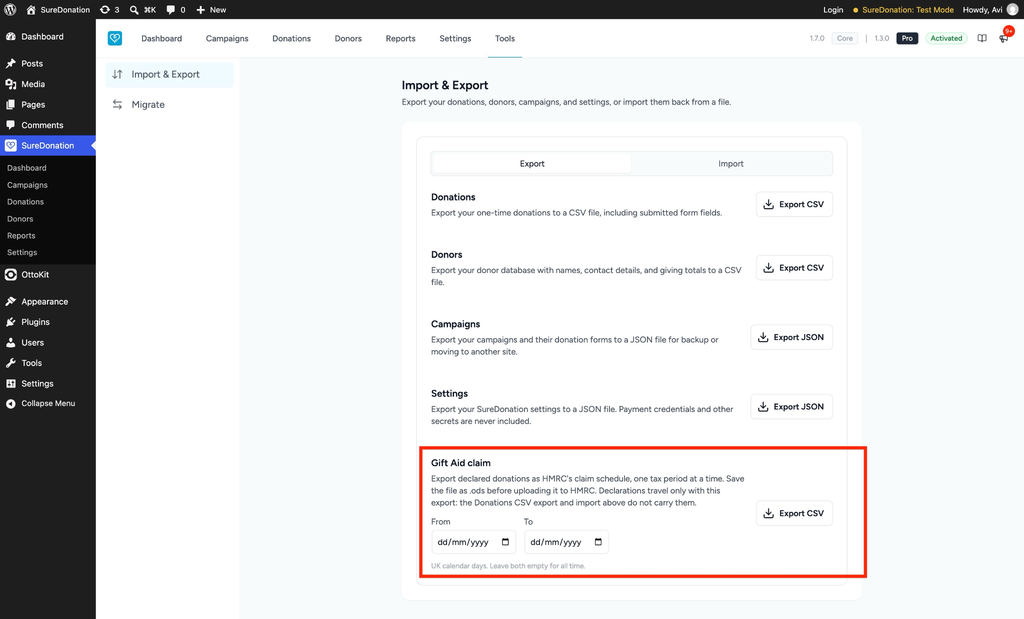
SureDonation downloads a CSV file containing the eligible Gift Aid donation records for the selected period.
If you leave both date fields empty, the export includes records from all available dates.
Submit Your Gift Aid Claim
After exporting the file, you can prepare it for submission to HMRC.
- Open the exported CSV file in a compatible spreadsheet application.
- Review the donor information and donation records.
- Prepare the file using HMRC’s required claim schedule format.
- Save the completed schedule in the supported format, such as .ods, where required.
- Submit the claim through the appropriate HMRC service.
Step 11: Allow Donors to Download Their Declarations
Donors can also access their Gift Aid declarations from the SureDonation Donor Dashboard.
To download a declaration:
- Log in to the Donor Dashboard.
- Open the donation history.
- Select a donation that includes a Gift Aid declaration.
- Open the donation receipt.
- Download the Gift Aid declaration PDF.
This allows donors to keep a copy of their Gift Aid declaration for their own records.
Example: Collect Gift Aid for a School Fundraising Campaign
Suppose you are running a fundraising campaign called Support School Students and want eligible UK donors to contribute through Gift Aid.
You can configure the donation form as follows:
| Setting | Value |
| Campaign Name | Support School Students |
| Currency | GBP – British Pound |
| Field | Gift Aid |
| Heading | Boost your donation by 25% with Gift Aid |
| Opt-in Label | Yes, I want to Gift Aid this donation |
| Show “What is Gift Aid?” | Enabled |
| Donor Information | First Name, Last Name, Address, Postcode, Country |
For example, if an eligible donor contributes £100 and opts in to Gift Aid:
- The donor pays £100.
- Your charity can claim an additional £25 from HMRC, subject to eligibility.
- The total potential value of the donation becomes £125.
The donor is not charged the additional £25.
That’s it! You have successfully configured Gift Aid in SureDonation Pro.
You can now collect Gift Aid declarations, maintain donor records, and export donation information to prepare claims with HMRC.
We don't respond to the article feedback, we use it to improve our support content.